Reservation Detail
Everything about one reservation, and everywhere you can change it
Reservation Detail
 Click to enlarge
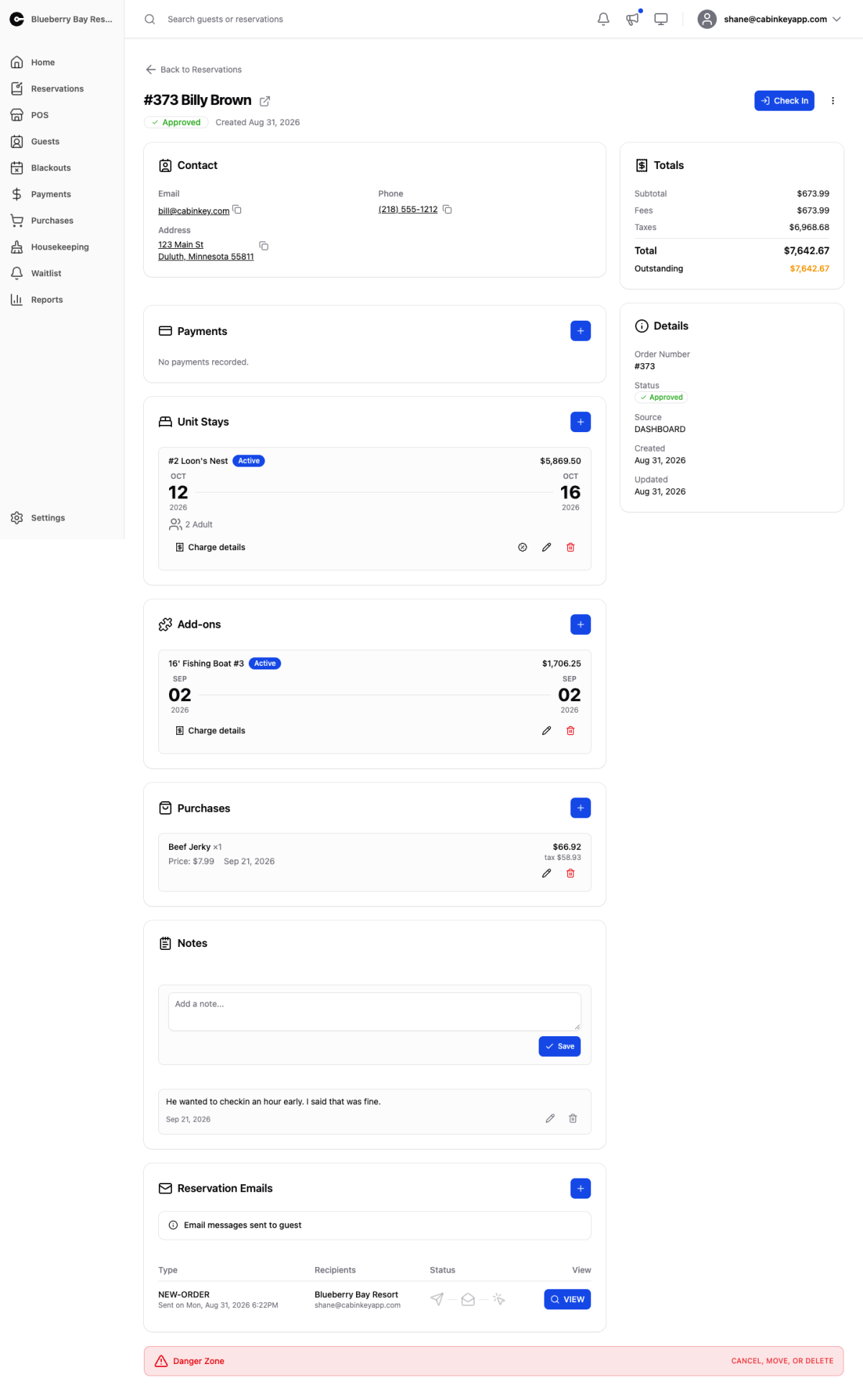
One reservation in full. Every part of the order — unit stays, add-ons, purchases, payments — is editable here, and this is where anything non-trivial about a booking gets done.
The page is a stack of cards. The ones at the top tell you who and how much; the ones below are the things being charged for. Almost every card has a + button to add something and, on each row, a pencil to edit it and a bin to delete it. Nothing changes until you press the form’s own save button, and every delete asks you to confirm first.
Header
 Click to enlarge
The order number and guest name, the reservation’s status, and when it was created. The arrow beside the name opens the guest’s profile.
The blue button is the next step for this reservation’s status — Approve for a pending booking, Check In once it’s approved, Check Out while the guest is on site, Activate for a cancelled one. It’s the button you’ll press most often.
Reservation actions menu
 Click to enlarge
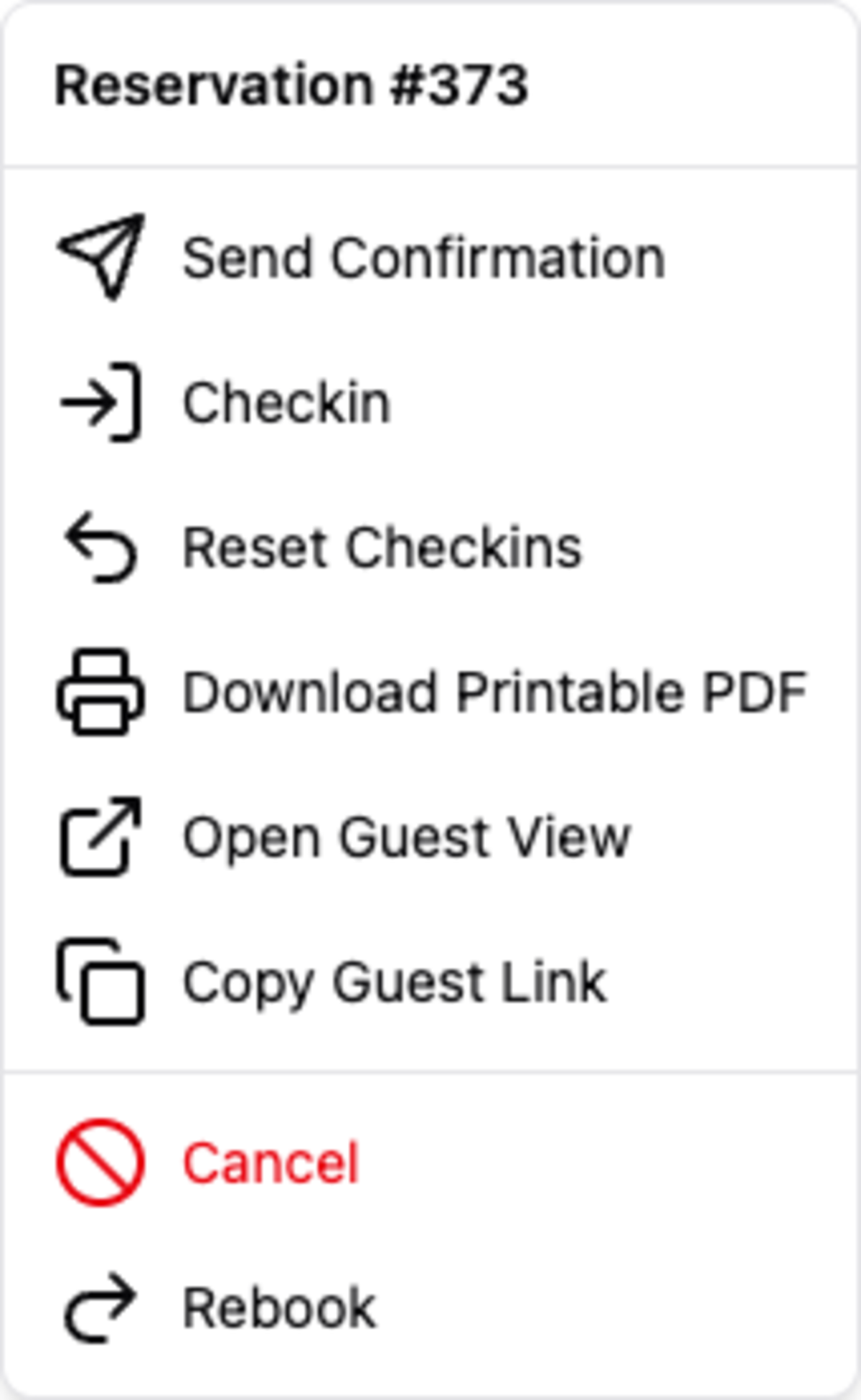
The ⋮ menu beside it holds everything else you can do to the reservation as a whole. It’s the same menu as on each row of the Reservations list:
- Approve Only / Approve & Send — approve a pending booking, with or without emailing the confirmation.
- Send Confirmation — send or resend the confirmation email, optionally with a personal note. The fix for “I never got my email”.
- Checkin / Checkout / Reset Checkins — process the stay, or undo a check-in made by mistake.
- Download Printable PDF — a paper copy for the guest.
- Open Guest View / Copy Guest Link — the page the guest sees from their confirmation email, or its link to send them. When a guest is confused about what they booked, look at their view rather than yours.
- Cancel / Activate / Rebook — change where the reservation is in its life, or set up next year’s stay from this one.
The options change with the reservation’s status: a cancelled reservation offers Activate instead of Cancel, for example.
Contact
 Click to enlarge
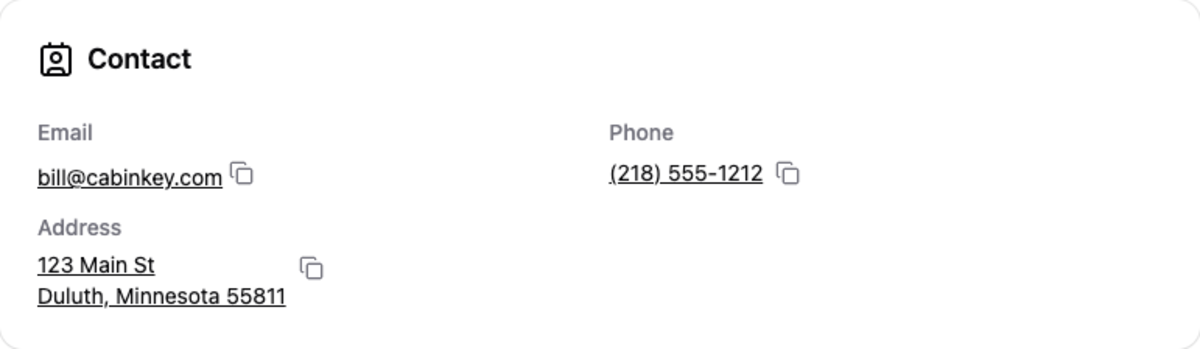
Who the reservation belongs to, with their email, phone, and address. To change these, open the guest’s profile — contact details belong to the guest, not the booking, so a correction there fixes every reservation they have.
Totals
 Click to enlarge
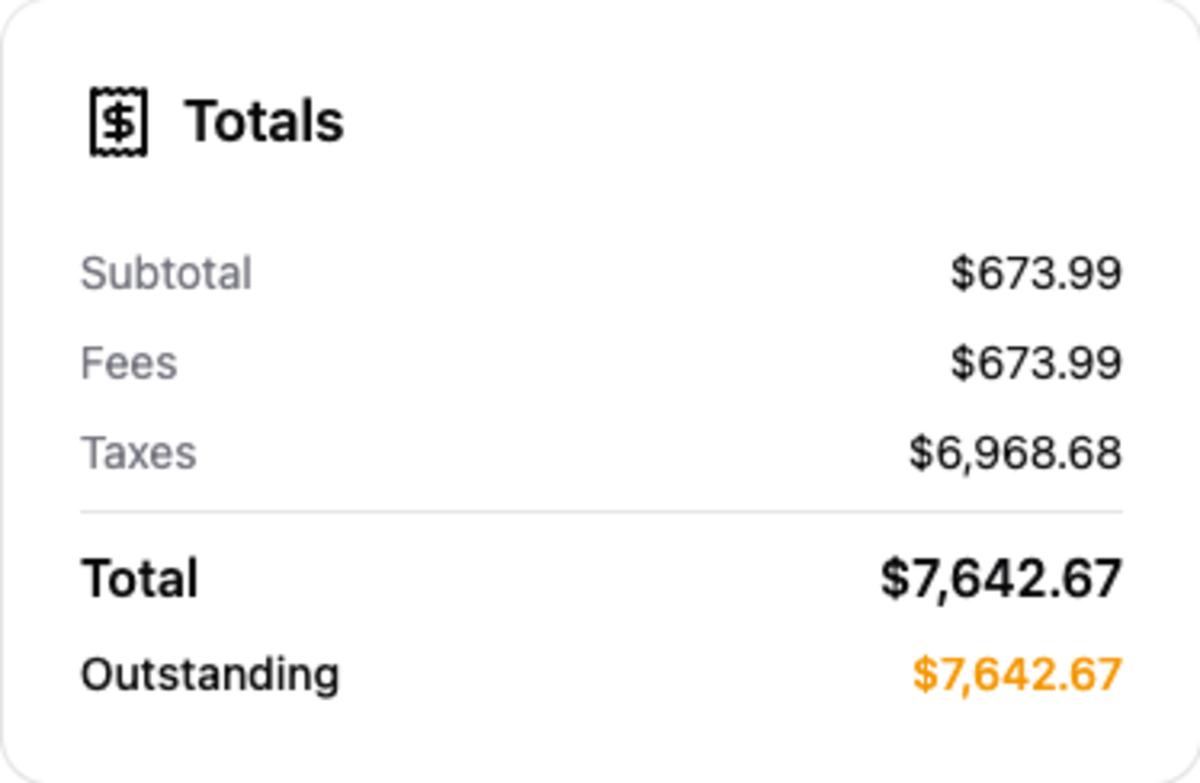
Subtotal, fees, discounts, taxes, total, payments made, and the outstanding balance. The outstanding figure turns orange while money is still owed.
This card adds up everything below it and updates the moment you change any of it. If the total isn’t what you expect, the cause is in one of the item cards — a rate that didn’t apply, a discount still attached, an add-on nobody removed.
Details
 Click to enlarge
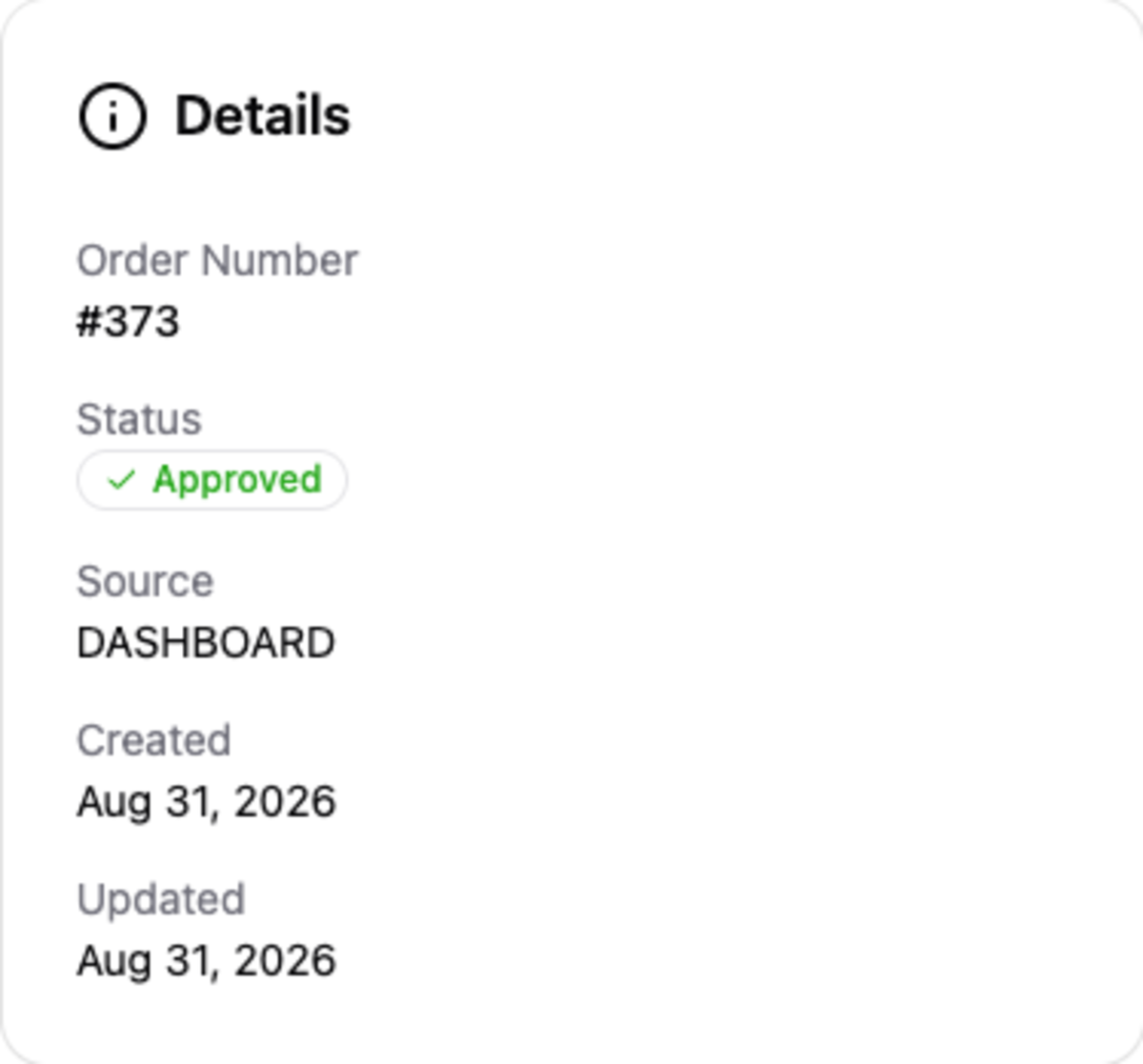
The facts of the booking: order number, status, where it came from, check-in and check-out times, and when it was created and last changed.
Source tells you how the booking arrived — online, entered by staff in Dash, or through another channel — which is useful when you’re working out why a booking looks unusual. Pending Expires appears only on a pending reservation and is the deadline for approving it before the dates are released.
Collect Payment
Take card money against the outstanding balance, three ways. Pick one and its form opens below.
This card only appears when the property takes card payments through a connected Stripe account and the guest has a Stripe customer record. For cash, checks, and payments taken elsewhere, use Log Payment on the Payments card instead.
Charge a saved card
Charge a card the guest has already saved, without them needing to be present. Pick the card, check the amount — it starts at the outstanding balance — and add a note if you like. Tick Deposit when the charge is holding a future stay rather than paying for one.
This is the quickest route for a returning guest or a balance due at checkout.
Charge a new card
Type in a card the guest has given you over the phone or at the desk and charge it immediately. The card is saved to the guest’s record, so next time it appears under Charge a saved card.
If the card is declined, the reason shows in the form.
Send a payment request
Create a secure Stripe payment link for the guest to pay themselves. You can email it, show it as a QR code for a guest standing in front of you, or copy it and send it however you like.
This is the right way to chase a deposit when there’s no card on file — the guest pays on their own device and the payment lands here automatically.
Payments
 Click to enlarge
Every payment on this reservation, deposits included, in date order, with the method and any note. Read this back to a guest who is sure they already paid.
Payments you logged by hand can be deleted, which removes the record without moving any money — use it only to fix a mistyped entry. Card payments taken through Stripe are marked Stripe and can’t be deleted here, because they’re real money. To record a refund you’ve given, log it with Log Payment and set the type to Refund.
Log Payment
 Click to enlarge
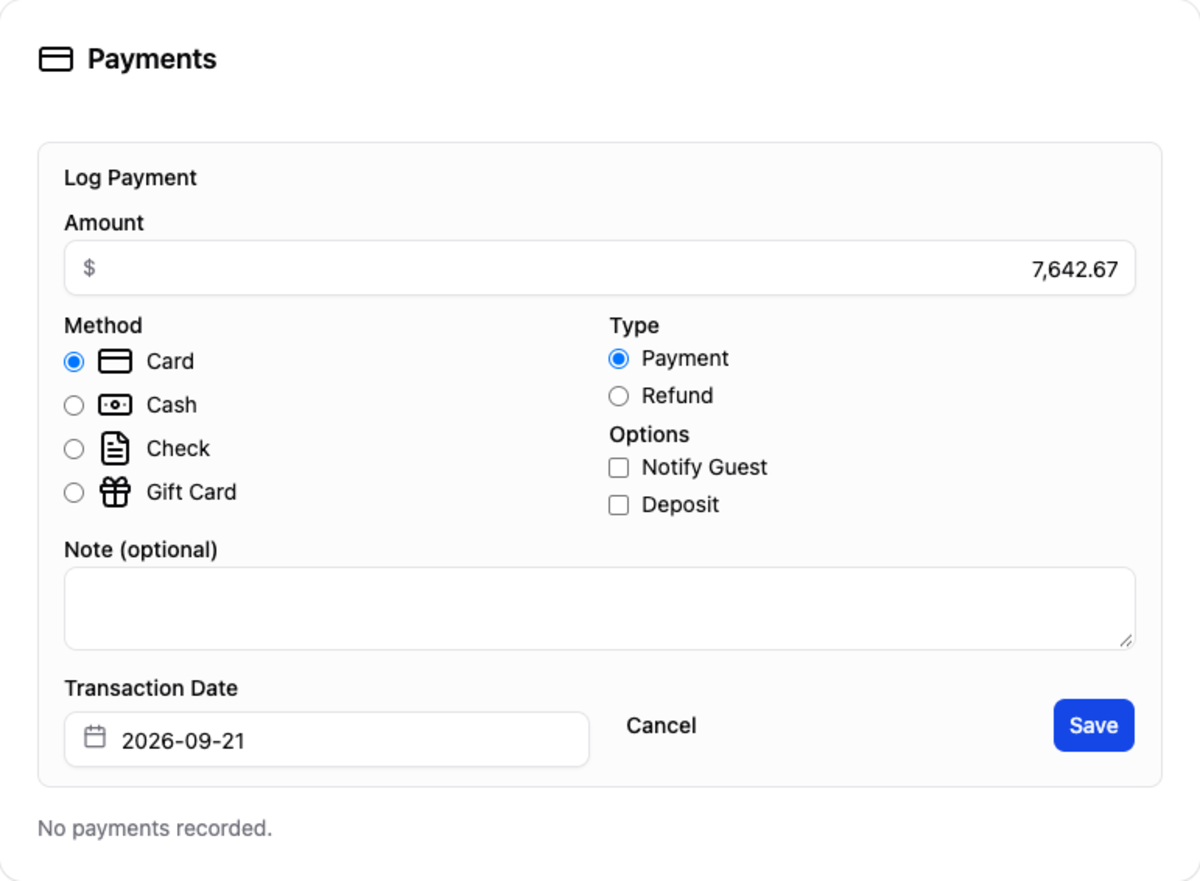
The + on the Payments card records money you took outside Dash — cash at the desk, a check in the post, a card run on a separate terminal, a gift card. It doesn’t charge anything; it tells CabinKey™ the money has arrived so the balance is right.
- Amount starts at the outstanding balance.
- Method — Card, Cash, Check, or Gift Card.
- Type — a Payment in, or a Refund out. Record refunds you’ve made so the balance reflects them.
- Notify Guest emails them a receipt.
- Deposit marks the money as holding a future stay, which is what Deposits Due and the Payments Report count.
- Transaction Date defaults to today. Back-date it to the day the money actually arrived, so the payment lands in the right period on your reports.
Unit Stays
 Click to enlarge
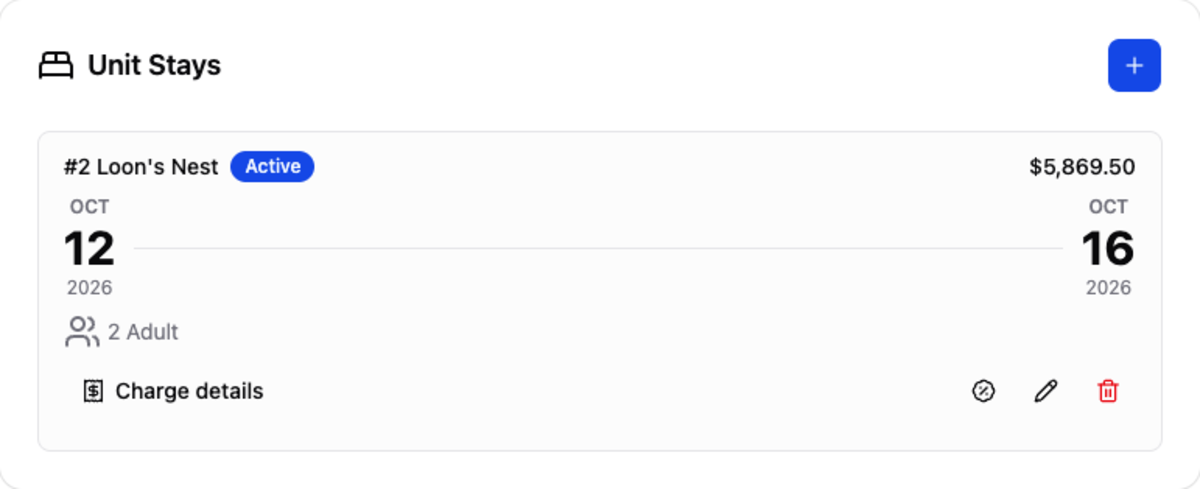
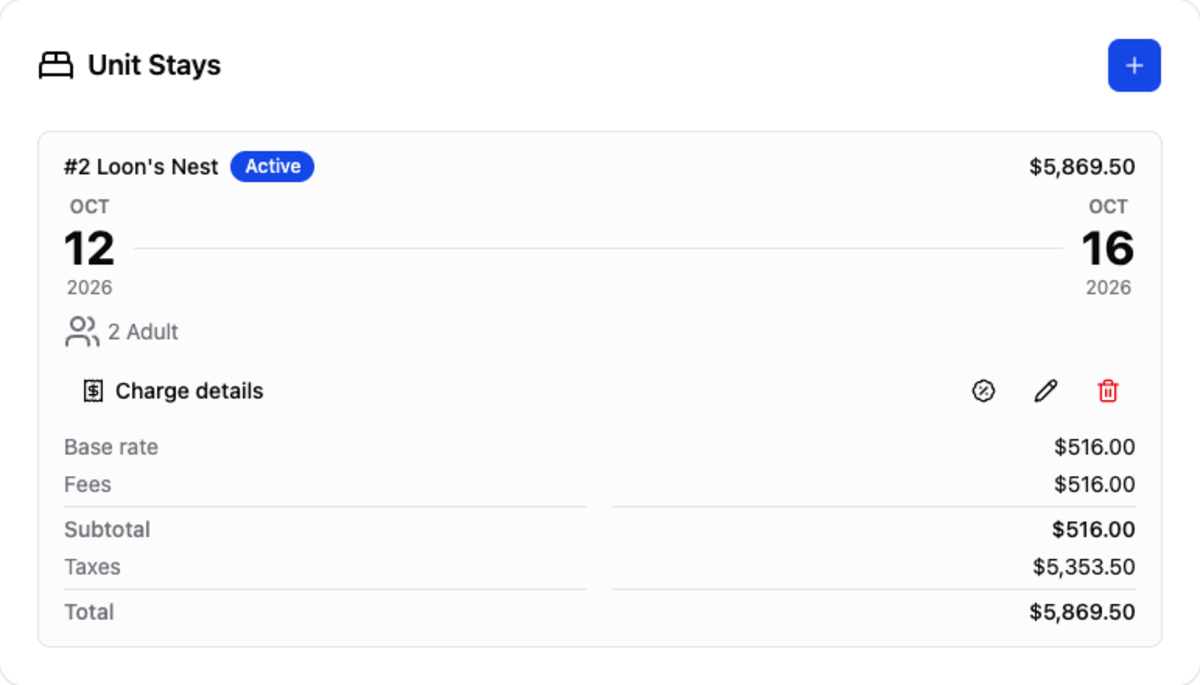
The units booked on this reservation — most changes to a booking happen here. Each stay shows the unit, its status, the dates, the party, pets, and the total, with check-in and check-out times once they’ve happened.
Add a unit stay
 Click to enlarge
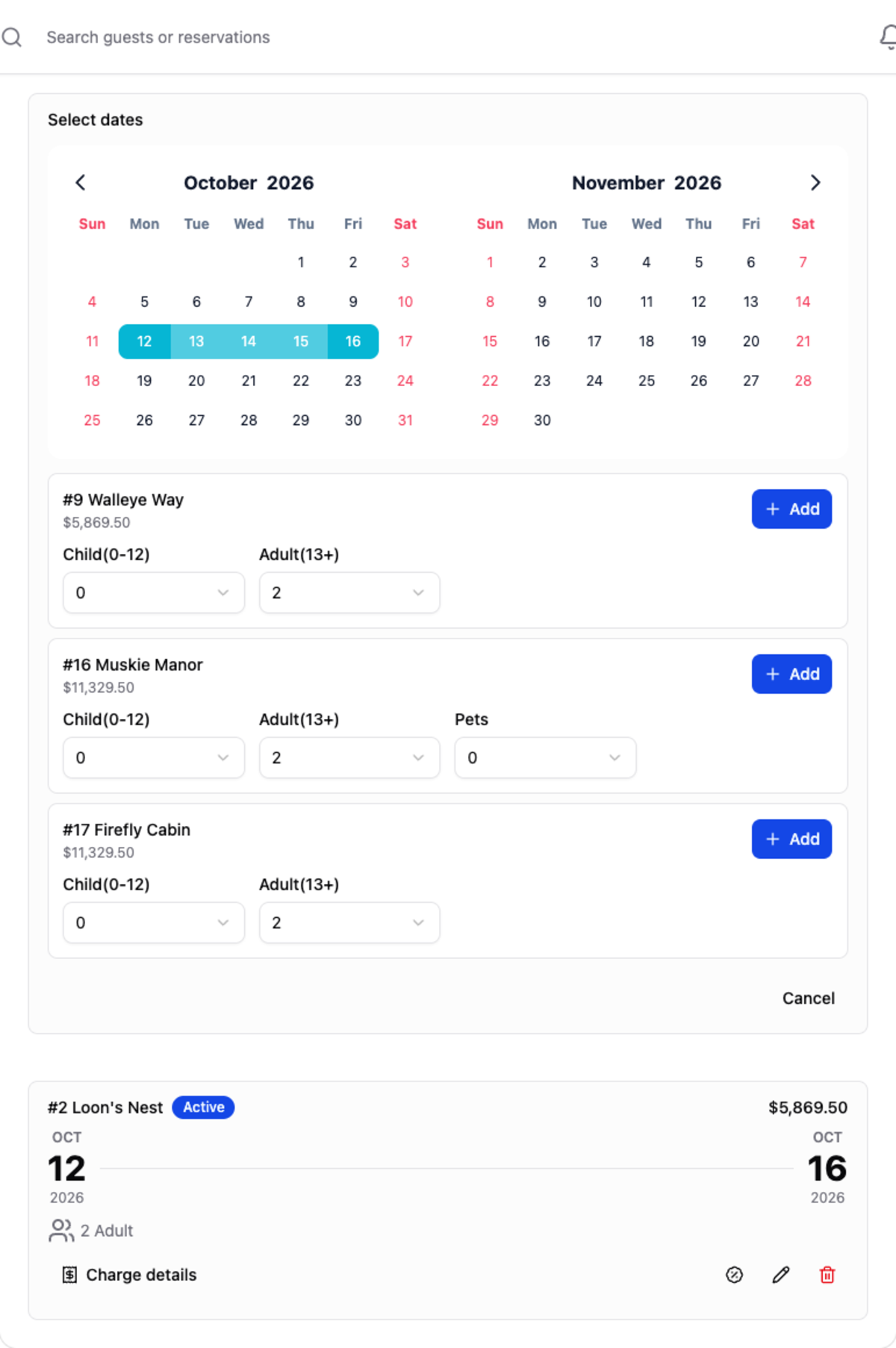
The + adds another unit to the same booking — a family taking two cabins, or a guest upgrading to a larger one. Choose the dates, and CabinKey™ lists only the units that are actually free for them. Set the party and pets for the one you want and add it.
Dates start from the reservation’s first stay, since most additions are for the same trip.
Edit a unit stay
The pencil opens the stay for editing: arrival and departure, how many guests in each age group, pets, and the nightly rate.
Changing dates or the party re-prices the stay, because occupancy and pet charges depend on them. Change the Rate only when you’ve agreed a price with the guest that your normal pricing wouldn’t produce — for everyday changes, let the dates and party drive the price.
Add a discount
The % button opens the discount panel. Pick a preset — 10, 15, 20, 25, or 30 percent — or Custom $ for a fixed amount, and give a reason if you like.
Always fill in the reason. It shows as the discount’s name in the charge breakdown and on the guest’s bill, so “Repeat guest” or “Late check-in compensation” explains itself later, where an unnamed discount leaves the next person guessing.
A percentage is worked out from the stay’s base rate, extra-people, and pet charges — not fees or taxes — and never from an already-discounted figure, so two 10% discounts come to 20%, not 19%. It’s also turned into a fixed amount when you add it. If you later change the dates or the party, the discount won’t follow the new price: remove it and add it again. Discounts can’t take a stay below zero.
Charge details
 Click to enlarge
Charge details expands the full breakdown: base rate, extra people, pets, fees, each discount, subtotal, each tax by name, and total. When a guest questions their bill, this is the answer, line by line.
Each discount has its own bin icon here, which is how you remove one.
Delete a unit stay
The bin removes a stay from the booking after you confirm. Use it for a unit that was added by mistake or that the guest no longer wants. To cancel the whole booking, use Cancel Reservation in the danger zone instead — that keeps the history, where deleting each stay doesn’t.
Add-ons
 Click to enlarge
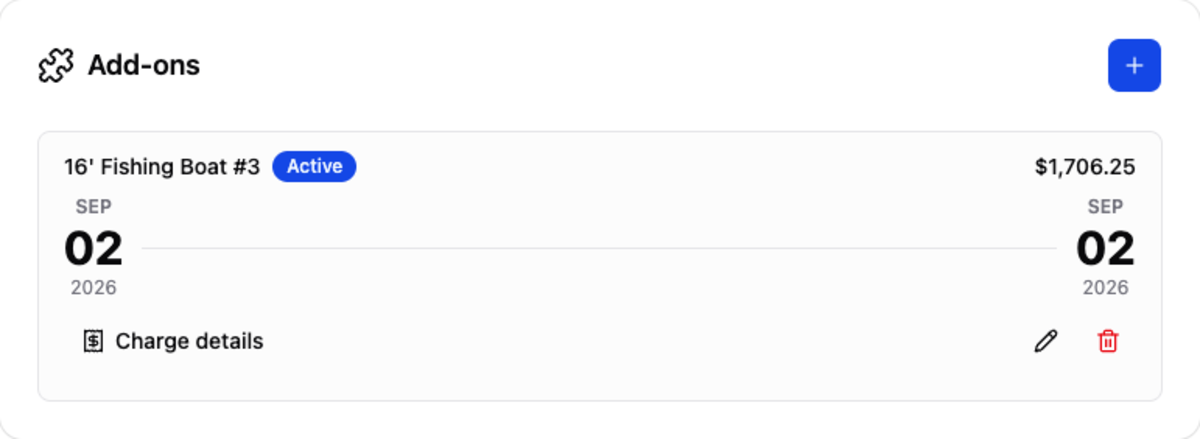
Add-on rentals on this reservation — boats, docks, equipment. They work like unit stays: each has its own dates, total, charge details, and check-in and check-out.
Add-ons have their own availability, so a boat can be taken for dates when the cabin is free. If one you expect is missing when adding, check its blackouts.
Add an add-on
 Click to enlarge
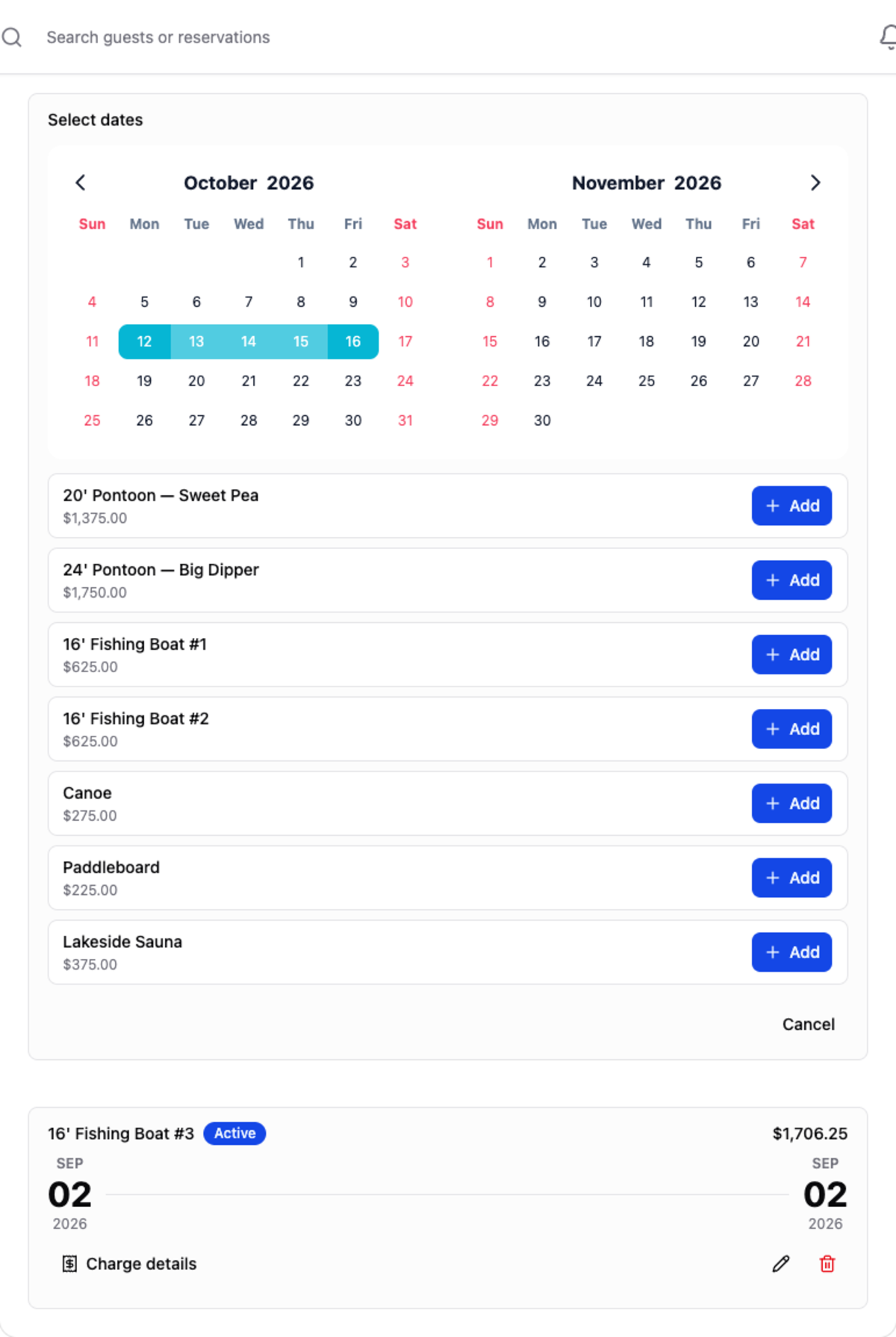
The + searches for add-ons free on the dates you choose — again starting from the stay’s dates — and adds the one you pick.
Edit an add-on
 Click to enlarge
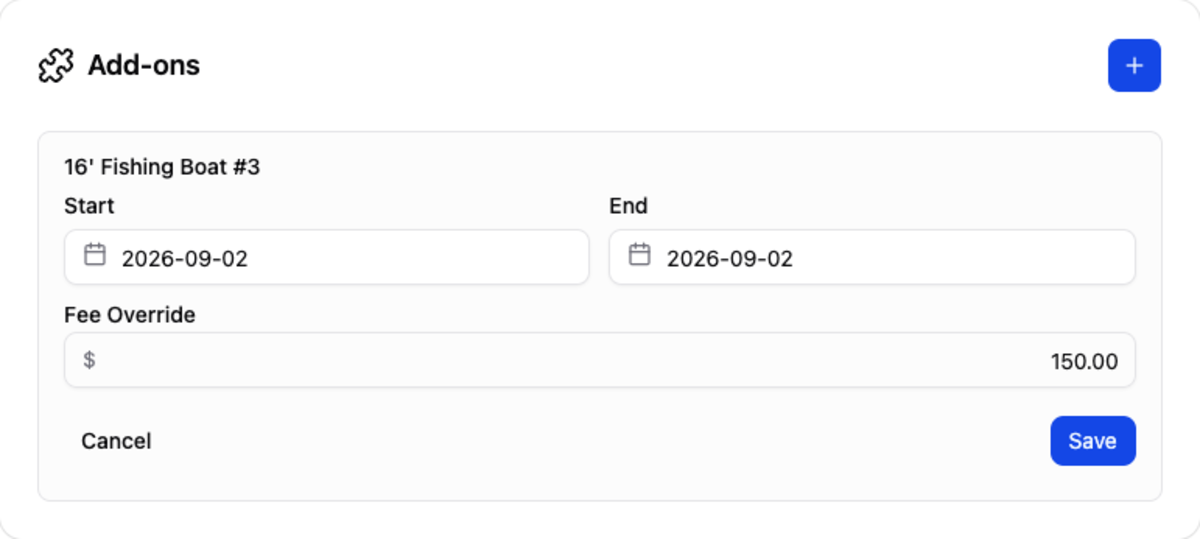
The pencil changes the rental’s Start and End dates and lets you set a Fee Override — a fixed price for this rental in place of the add-on’s normal rate. Use the override for a deal you’ve agreed; leave it empty so the rental prices itself normally.
Purchases
 Click to enlarge
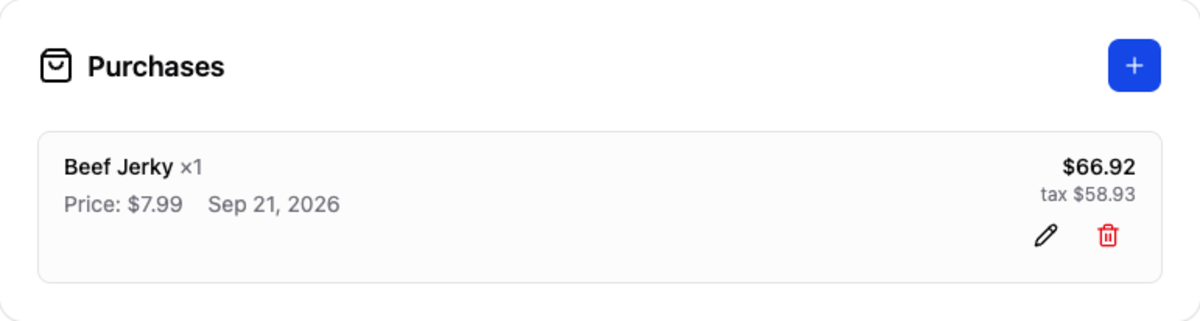
Sale items bought on this reservation, whether rung up at the Point of Sale or added here. Counter sales charged to the room end up here, so the guest settles everything once at checkout.
Add a purchase
 Click to enlarge
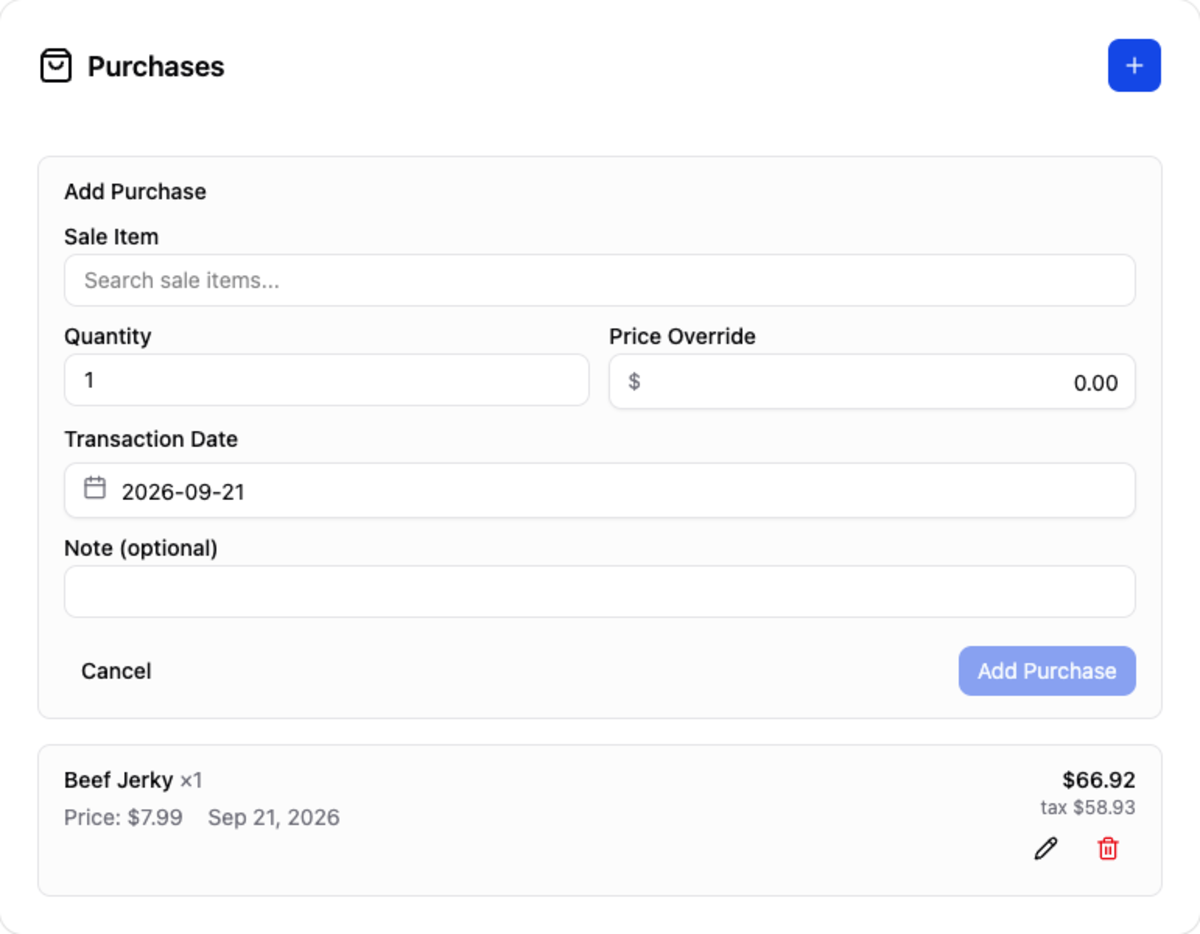
Search for the Sale Item, set the Quantity, and optionally a Price Override for this sale only. Add a note if it needs explaining, and set the Transaction Date if the sale happened on a different day — it controls which period the sale counts in on the Sale Item Revenue report.
Edit a purchase
The pencil adjusts the quantity or price of a purchase already on the bill — the usual fix when the wrong number of firewood bundles was rung up.
Reservation Emails
 Click to enlarge
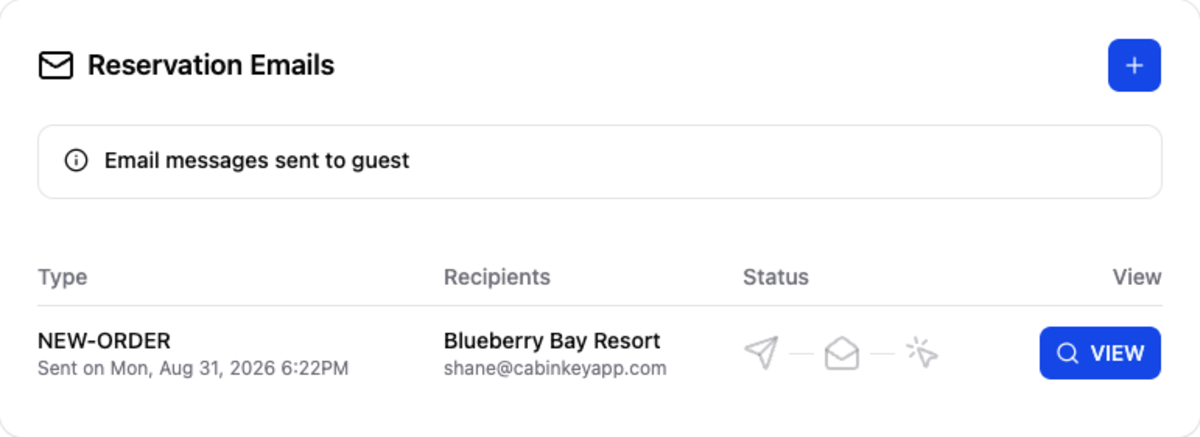
Every email CabinKey™ has sent about this reservation: its type, who it went to, and whether it was delivered, opened, and clicked. View shows exactly what the guest received.
This is the first place to look when a guest says they never got their confirmation. If the email was delivered and opened, the conversation is different from one where it bounced.
Send an email to the guest
 Click to enlarge
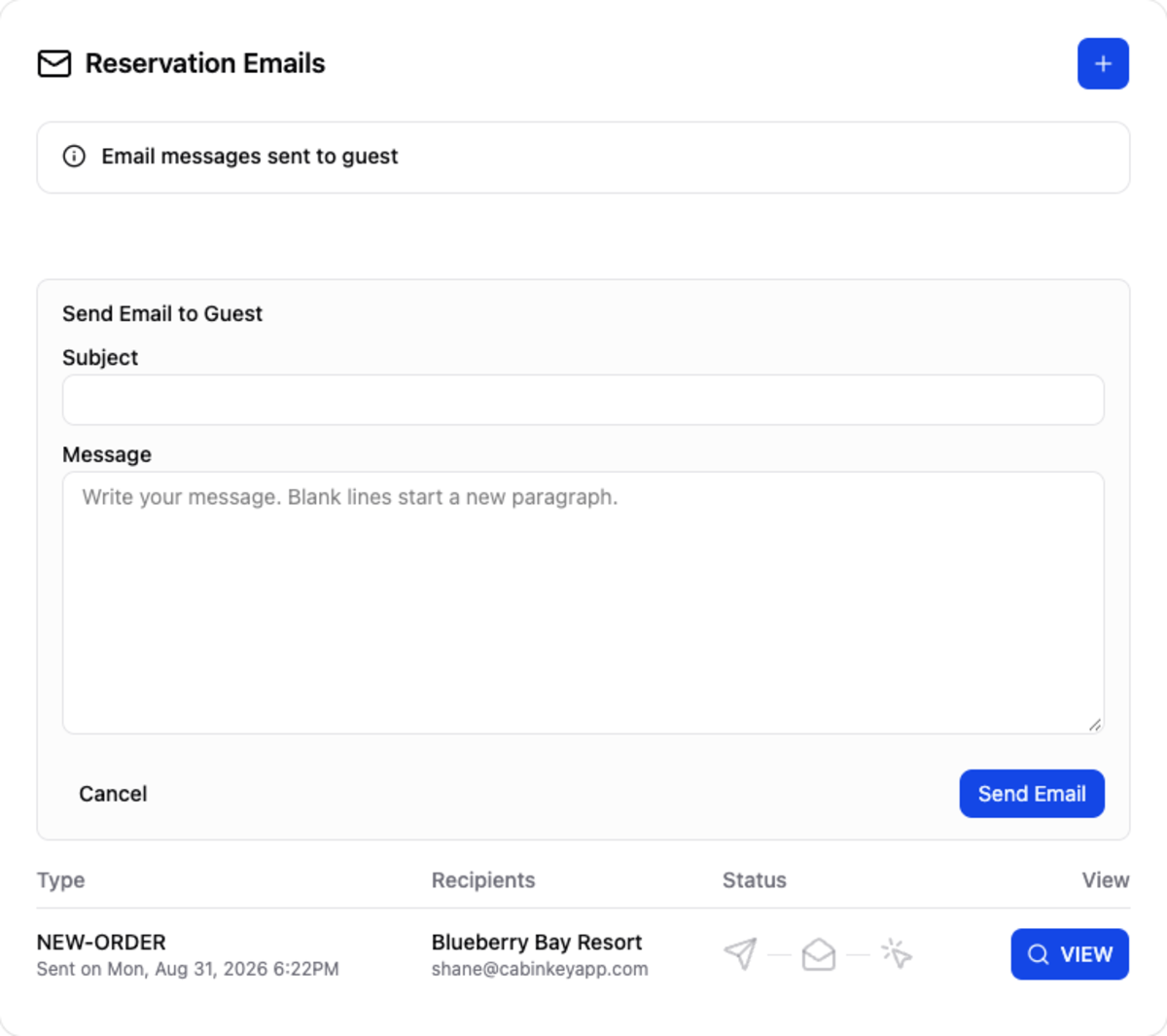
The + writes a one-off email to the guest — directions, a change of plan, a thank-you. Give it a Subject and a Message; a blank line starts a new paragraph.
It’s sent from the property and recorded in this card’s history like any other, so the whole conversation about the booking stays in one place.
Notes
 Click to enlarge
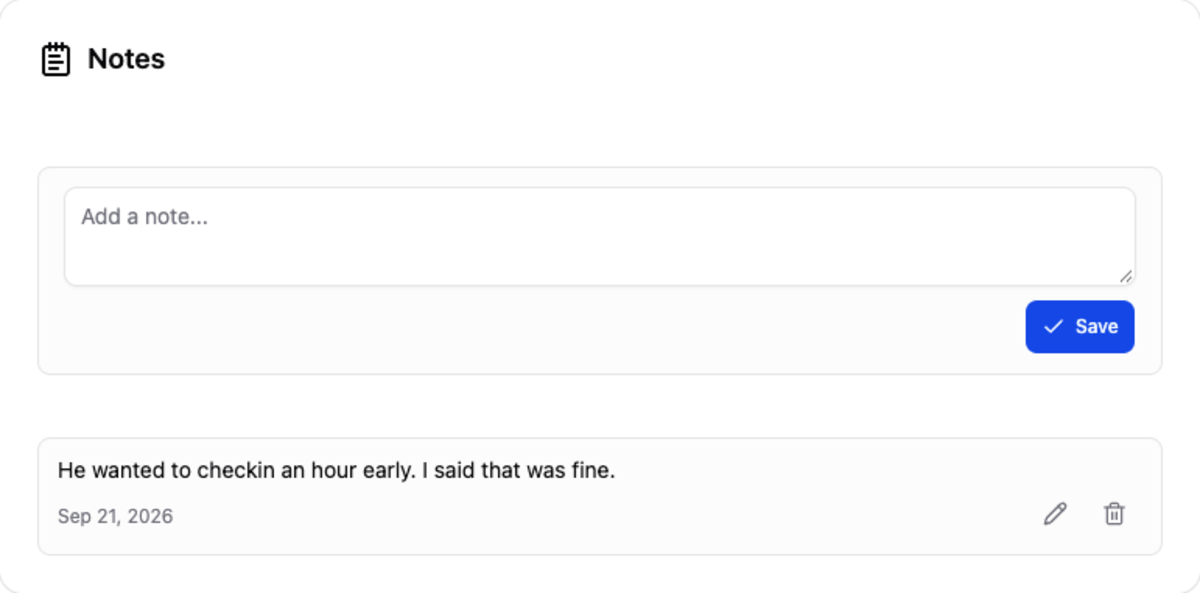
Private notes about this booking, visible to your team and never to the guest: a late arrival time, a birthday in the party, a request for the cabin nearest the dock. Type into the box and Save.
These are notes about this reservation. Anything true of the guest on every visit belongs in the notes on their profile instead, where it’ll be there next year too.
Edit a note
The pencil on a note turns it back into an editable box. Edited notes are marked edited, with the time on hover.
Danger Zone
 Click to enlarge
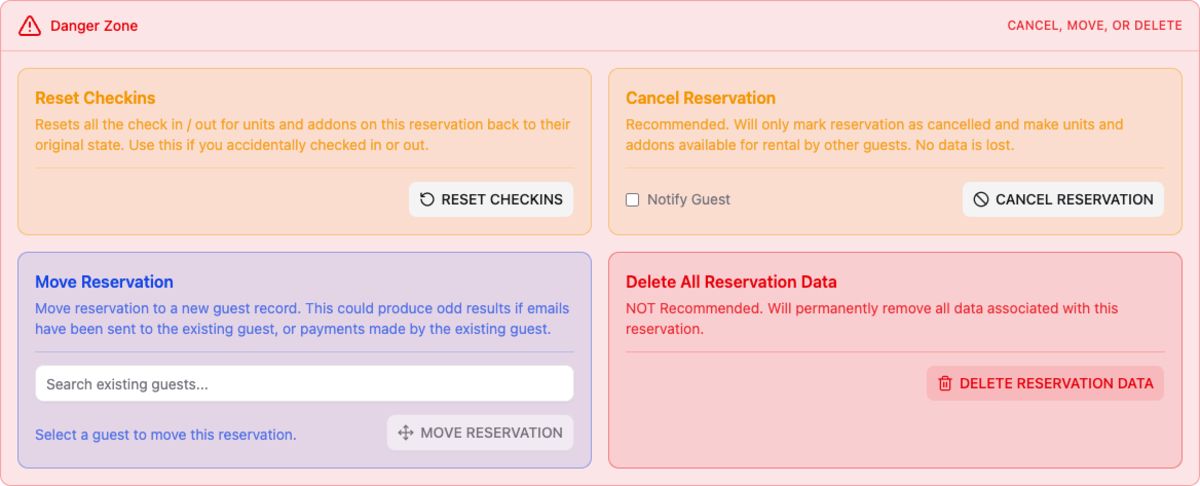
The bar at the foot of the page, collapsed until you click it. Everything inside changes the whole reservation, and each asks you to confirm.
- Reset Checkins — puts every unit and add-on back to not checked in or out. For undoing a check-in made by mistake.
- Cancel Reservation — the recommended way to end a booking. It marks the reservation cancelled and releases its units and add-ons for others to book, while keeping every payment, email, and note. Tick Notify Guest to email them. A cancelled reservation shows Activate Reservation here instead, which restores it.
- Move Reservation — reassign the booking to a different guest record, found by search. Useful when a booking was made under the wrong person. Be careful once emails or payments exist, since those stay tied to the original guest.
- Delete All Reservation Data — permanently removes the reservation and everything attached to it. It can’t be undone and it leaves holes in your reports. Cancel instead unless the booking should never have existed at all — a test booking, for example.