Reservations
Every reservation, with filters and quick actions
Reservations
 Click to enlarge
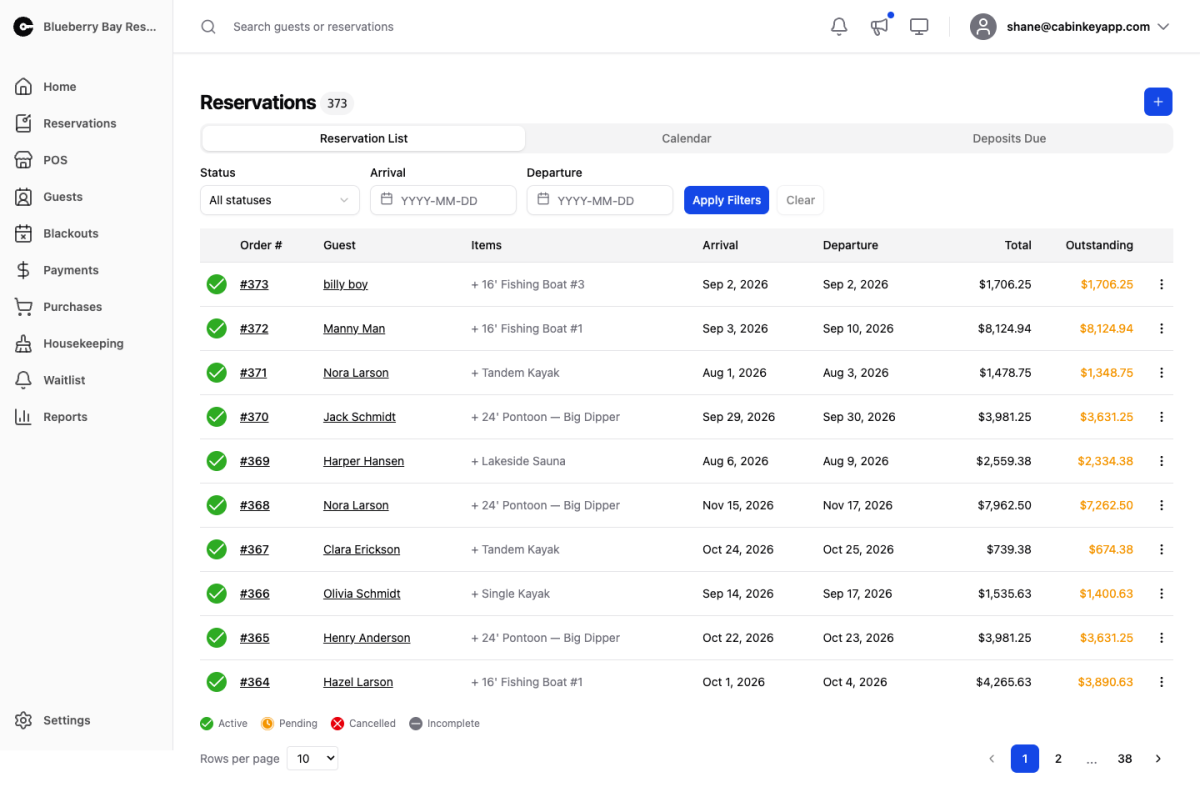
The full reservation list. Search by guest name or order number, narrow by status and dates, and act on bookings without opening them.
Where Property Home shows you today, this page is for everything else — finding the booking a guest is calling about, working through pending approvals, or reviewing a period before it arrives.
Filters
 Click to enlarge
Filter by status and by arrival or departure date, then Apply Filters; Clear returns to the full list.
The statuses answer different questions:
- Active — confirmed bookings. Your real forward business.
- Pending — waiting on approval, and holding dates in the meantime. Worth clearing regularly, because these block inventory.
- Cancelled — kept for history rather than deleted, so the dates and the money are still traceable.
- Incomplete — a guest started booking and did not finish. These are not holding anything, but a cluster of them in the same dates usually means something is going wrong at checkout.
Filtering by arrival date is how you prepare for a period; by departure, how you plan turnovers and chase outstanding balances.
Reservation Table
 Click to enlarge
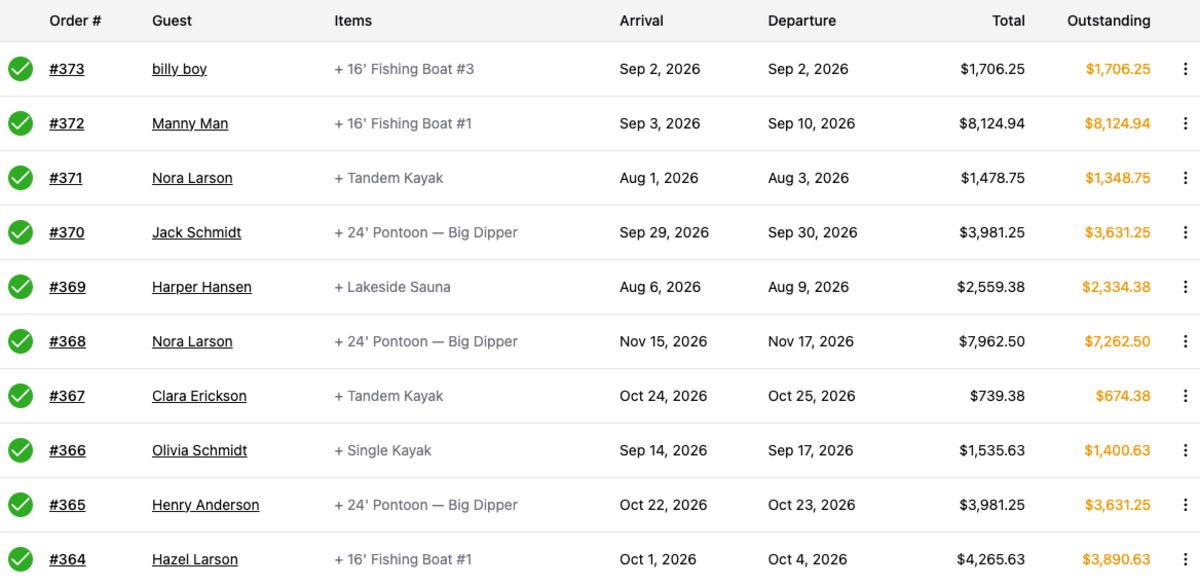
Each row shows the order number, guest, items, arrival, departure, total, and outstanding balance. The balance column is the one to scan — it is where unpaid deposits and unsettled stays show up.
The row menu handles most of what you need without opening the reservation:
- Open Guest View / Copy Guest Link — see exactly what the guest sees, or send them the link. The fastest answer to “what does my booking say”.
- Approve Only / Approve & Send — approve a pending reservation, with or without sending the confirmation. Approve Only is for when you want to check something before the guest hears from you.
- Send Confirmation — send or resend the confirmation, optionally with a personal message. Use it when a guest says the email never arrived.
- Checkin / Checkout / Reset Checkins — process the stay, with Reset for when someone was checked in by mistake.
- Download Printable PDF — a printable copy for guests who want paper.
- Cancel / Activate / Rebook — move the reservation through its lifecycle. Rebook creates next year’s booking from this one.
Anything needing the full picture — changing dates, editing rates, taking payment — happens on the reservation detail page.