Unit Detail
Everything about a single unit: capacity, occupancy, calendar sync, taxes, and amenities
Unit Detail
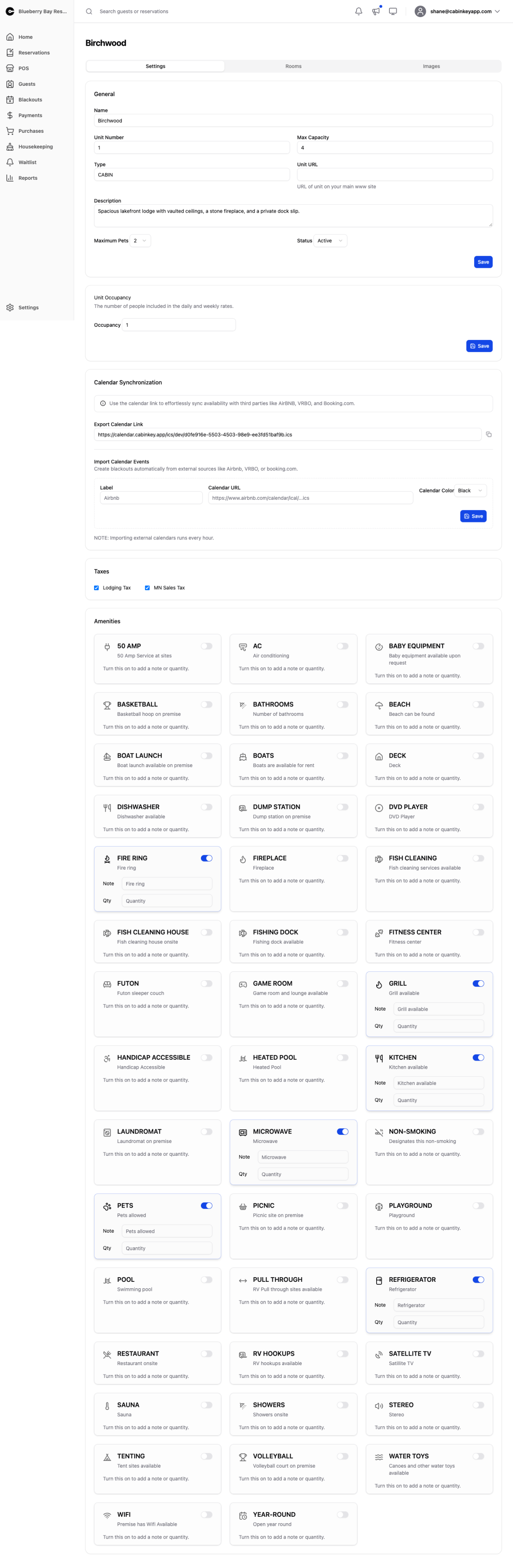 Click to enlarge
Everything about one unit. From here you can also jump to its images and rooms & beds.
General
 Click to enlarge
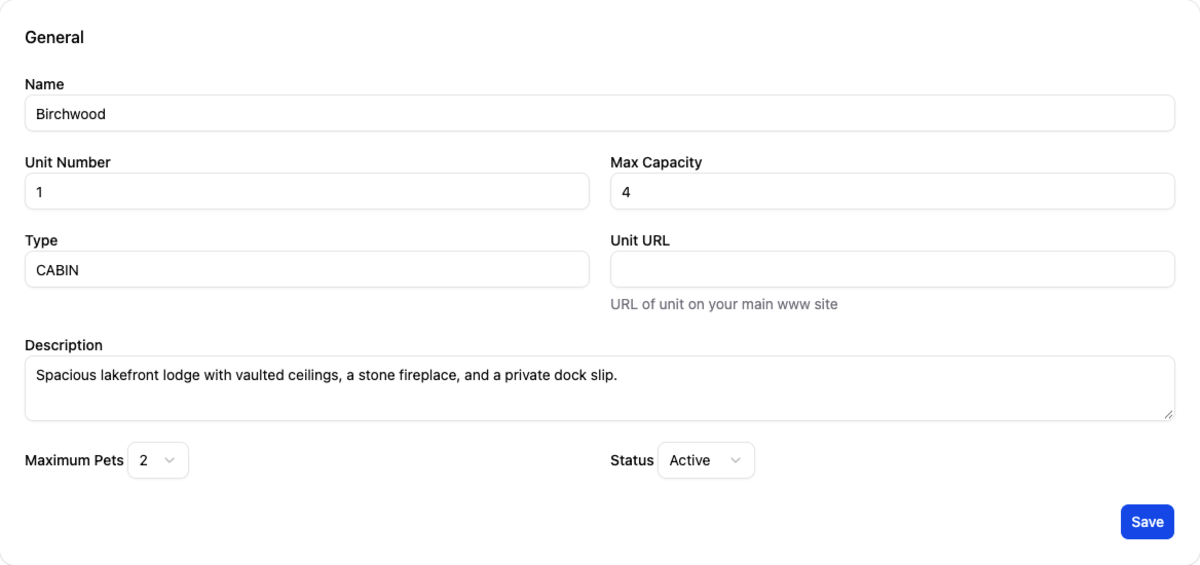
The unit’s name, unit number, max capacity, type, description, maximum pets, and status.
Max capacity is the hard limit — the most people who can stay there at all. It is not the same as occupancy below, and confusing the two is the most common setup mistake on this page. Capacity limits search availability by party size when enforce unit capacity is on in General Settings.
Maximum pets works the same way as a hard limit, and interacts with the pet search toggle on your guest-facing page.
Status takes a unit out of service without deleting it — the right move for a cabin you are not renting this season. For a short closure, use a blackout instead, so the unit’s utilization numbers stay honest.
The optional Unit URL points at this unit’s page on your own website, and is what the Redirect to Unit URL booking method sends guests to.
Unit Occupancy
 Click to enlarge
The number of people included in the daily and weekly rates — not the maximum the unit holds.
A cabin that sleeps eight but is priced for four has a capacity of 8 and an occupancy of 4. Guests five through eight are then charged through your extra-occupancy pricing: occupancy charges on Rate v3, or occupancy rate adjustments on Rate Plans.
Set occupancy equal to capacity if your rate covers a full house and you do not charge per extra guest. Leave them different only when you intend to charge for the difference — an occupancy lower than capacity with no extra-guest pricing configured just means you are giving those beds away.
Calendar Synchronization
 Click to enlarge
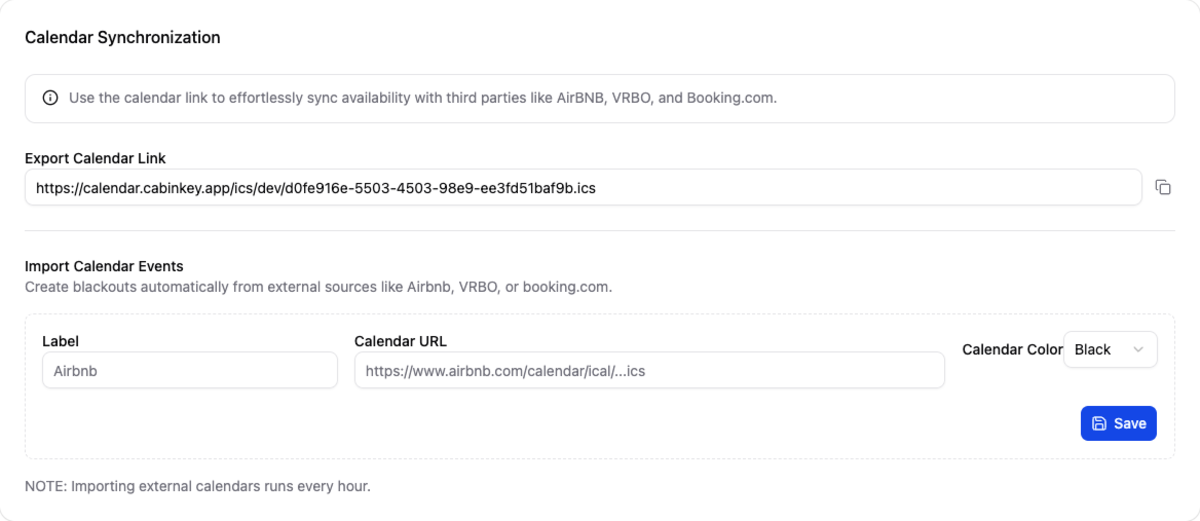
Keep availability in step with Airbnb, VRBO, Booking.com, and anything else that speaks iCal.
- Export Calendar Link — an iCal feed of this unit’s bookings for other platforms to subscribe to, so a CabinKey™ booking blocks the dates there.
- Import Calendar Events — subscribe to external calendars, and CabinKey™ creates blackouts from their events, so a booking taken elsewhere blocks the dates here. Give each import a label and colour so you can tell at a glance which platform a blackout came from.
Set up both directions on every unit you list elsewhere. One direction only is how double-bookings happen.
Imports run hourly, so there is always a window where a booking exists on one platform and not the other — worth knowing when you are selling the last night of a popular week. Failed syncs are flagged here and raised on the Alerts page; a feed that has quietly stopped is the most dangerous state, because everything looks fine until you are double-booked.
Taxes
 Click to enlarge
Which of your property’s taxes apply to this unit’s charges.
The same assignments can be managed per tax on the Taxes page. Do it from here when you are adding a new unit, and from there when you are adding a new tax.
A new unit with no taxes assigned will happily take bookings and collect nothing, and the shortfall is yours to pay. Check this card before putting a unit on sale.
Amenities
 Click to enlarge
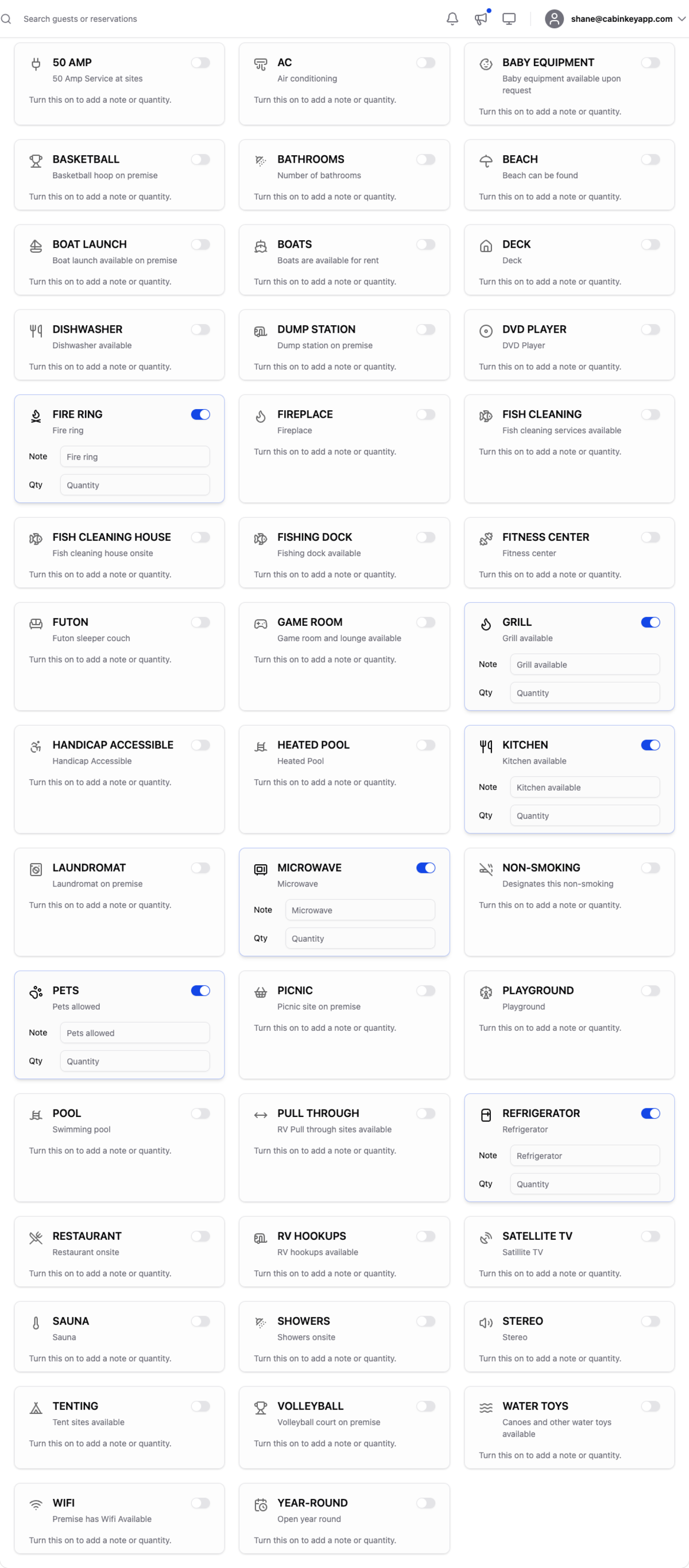
What this unit offers, optionally with a note or quantity — “Beds: 3”, “Kayaks: 2”. Options come from Amenities settings.
These are what guests filter and compare on, so it is worth being accurate rather than generous. An amenity listed and not delivered is a complaint at check-in.